IntelliSee

How it works

How IntelliSee turns camera views into AI alerts.

IntelliSee connects your existing camera feeds to on-site computer vision, evaluates supported visible events, and sends configured alerts with context. Your team assesses the event and follows its response plan.

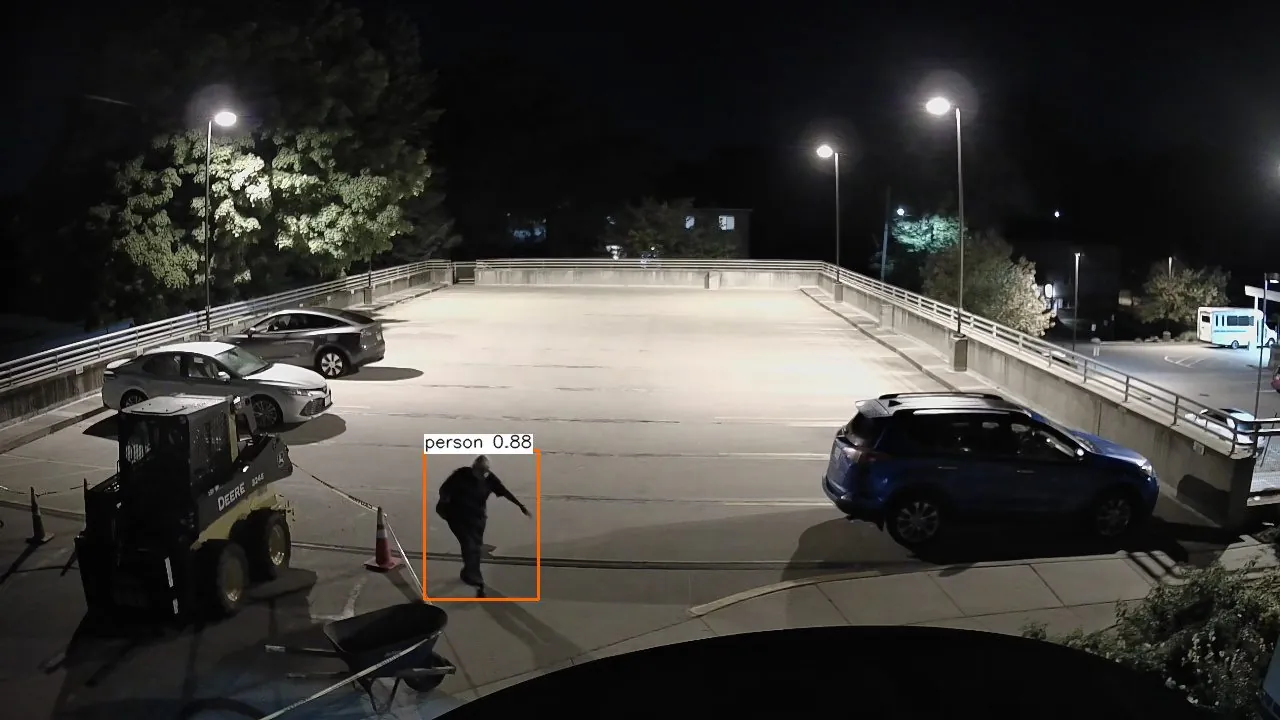
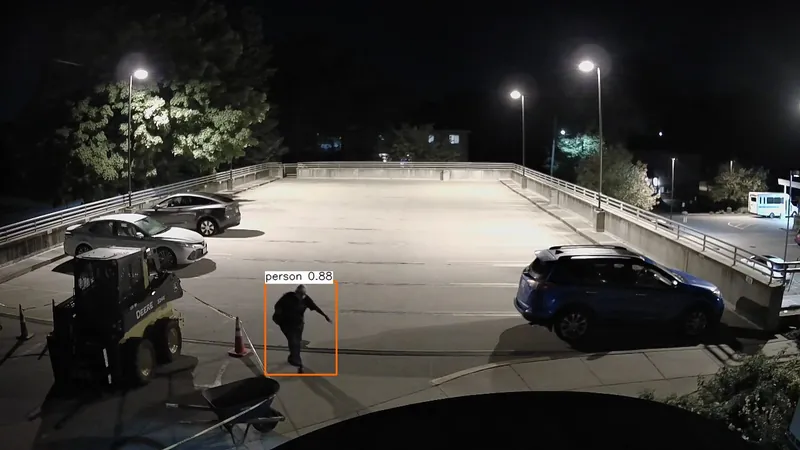
Person detection in an exterior area at night
Person detection in an exterior area at night · IntelliSee detection example
  1. Camera view
  2. Event context
  3. Your team

The workflow

Four stages. One useful handoff.

01 / Connect

Start with the views you already have.

Review camera models, stream access, network paths, and representative views. The camera must provide an accessible stream, and the scene must show the event you want to evaluate; those are separate requirements.

Input
Your existing camera feeds
Focus
Views and coverage
Next: Analyze

02 / Analyze

Give connected views a purpose.

An on-site appliance analyzes connected views for selected visible objects and events. Review processing capacity, power, network access, and deployment requirements with IT.

Input
Connected camera views
Focus
Configured visible events
Next: Evaluate

03 / Evaluate

Consider the event in context.

Detection logic considers the event across frames and configured conditions. The selected category, view, and applicable region or schedule shape what is evaluated. This does not eliminate missed or unwanted alerts.

Input
The visible event
Focus
Frames and conditions
Next: Notify

04 / Notify

Put useful context in the right hands.

Configured alerts carry event context to designated people and supported systems. Test recipient access and delivery, then confirm who assesses the event and owns any escalation.

Input
Event context
Focus
People and supported systems
Meet the human handoff

What your team receives

People.

Context for the person making the decision.

  1. What happened

    The detection category and event image help an authorized recipient assess why attention was requested.

  2. Where to look

    A useful camera name and location connect the signal to a real place. Check that names make sense to the staff who will respond.

  3. What to do next

    Your organization owns the response procedure, backup coverage, and follow-up. Receiving a notification is not the same as completing a response.

    How Incidents track the follow-up

Deployment planning

Start with the details that shape the fit.

Build your walkthrough checklist.

Understand where processing and event data go.

Continuous video analysis runs on site. Configured alert paths can share event information and images with recipients or supported third-party services. Review these as separate parts of the architecture.

Camera-to-alert data review
StageInformation involvedDecision for your team
Camera connectionCamera feed and its configured accessWhich feeds are approved and how the appliance reaches them
Local analysisImages evaluated for the selected visible eventWhich views, detection categories, and conditions are in scope
NotificationEvent context and, where configured, an event image or image linkWhich recipients and services may receive it
Review and follow-upHuman assessment and the organization’s response recordsWho may access, share, retain, and review the relevant information

Singlewire’s IntelliSee configuration guide documents camera-location mapping, scenario setup, and sending an alert image. Confirm the specific integration and configuration in your proposal.

No facial recognition is used. Event images can still show identifiable people or sensitive surroundings, so review retention, access, and sharing with the responsible team.

Check the dependencies before calling the workflow ready.

Camera and scene

Review resolution and stream settings alongside the actual view. Distance, angle, lighting, motion, and obstructions affect what can be evaluated. A protocol match does not establish scene suitability.

Network and processing

Document feed access, appliance placement, power, network responsibilities, and the connections required for selected alert routes. Agree on ownership for credentials and maintenance.

People and notification tools

Set primary and backup recipients, meaningful location names, and approved escalation. Confirm supported integration versions and scope with the responsible vendors.

For protocol context, ONVIF Profile T describes video-streaming features. Actual compatibility with your camera, firmware, stream, and IntelliSee deployment still needs review.

Walk through your camera-to-alert workflow with IT, safety or security, and the people responsible for responding.

Validate the workflow, including interruptions.

Do not infer full offline operation from local processing: a local camera path and an external alert route have different dependencies. Document what remains available in each failure scenario.

Use the field evaluation plan for detailed pilot questions, or explore the platform scope before the technical walkthrough.

  1. Choose representative conditions. Agree on the selected cameras, visible events, normal activity, and hours to evaluate.
  2. Review detection outcomes. Record expected events, missed events, and unwanted alerts with the conditions around them.
  3. Test the handoff. Confirm the event image, location, recipients, and delivery route. Measure delivery separately from acknowledgment and action.
  4. Review loss of service. Ask what happens if a camera feed, appliance, local network, internet connection, or notification provider is unavailable. Confirm health reporting, recovery, and fallback responsibilities for the actual design.
  5. Plan ongoing checks. Revisit the affected workflow when cameras move, scenes change, staff roles change, or software is updated.

Common questions

Before your walkthrough.

Can IntelliSee use our existing cameras?

In most cases, yes. Existing feeds can be used after a review of camera models, stream settings, connectivity, and scene suitability. Bring representative views and your camera inventory. Additional on-site processing is part of the deployment review.

Does all data stay on site?

Video analysis runs locally, but event data and images may be shared through configured notifications and integrations. Review the complete data path, recipients, access, and retention for your deployment.

Does IntelliSee keep working during an outage?

That depends on the failed component and configuration. Camera access, processing, and notification delivery have separate dependencies. Confirm each outage scenario and the fallback process during technical planning.

Who decides what happens after an alert?

Your organization defines the response and escalation process. A supported integration can carry information or initiate its configured workflow, but the required recipients, approvals, and operational responsibilities must be established and tested.

How long does deployment take?

Timing depends on scope, feed access, network readiness, processing requirements, configuration, integrations, and evaluation. Request a plan with responsibilities and acceptance criteria for your site rather than assuming a universal installation time.

Let’s put it to work

Built around people.Ready when you are.

See the software in action, then talk through how it could fit your people, your spaces, and the cameras you already have.

AI safety software. Built around your people, spaces, and operations.